Automatic backups on Windows with File History
A tool that comes with the system and protects your personal folders without you having to remember.
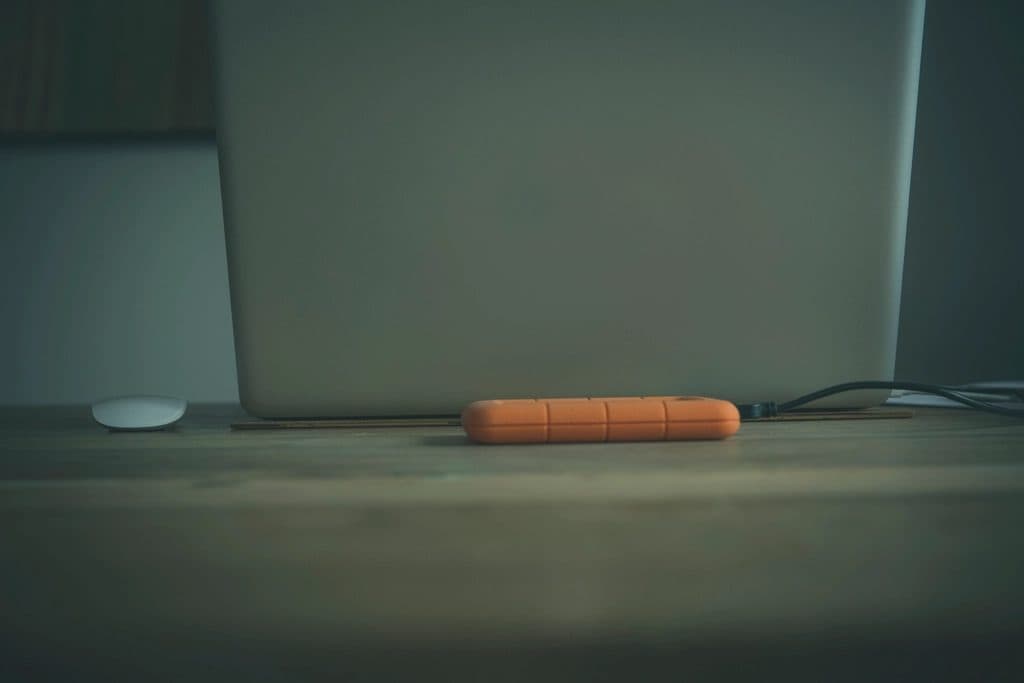
File History periodically copies your library folders, such as Documents, Pictures and Desktop, to an external drive. It keeps older versions, so you can recover a file the way it was days ago.
Connect the external drive
Plug in the drive or USB stick and wait for Windows to recognize it.
Open Control Panel
Search for Control Panel in the Start menu and go to System and Security.
Go to File History
The screen shows the detected drive. If it doesn't, use Select drive.
Turn it on
Click Turn on. The first copy starts right away and may take a while, depending on the volume.
Adjust the frequency
In Advanced settings, choose how often to copy and how long to keep versions.
To recover a file
On the same screen, use Restore personal files. Browse the dates with the arrows, select what you need and click the green restore button.